How to Preview Your Hinge Profile and Check What Others See

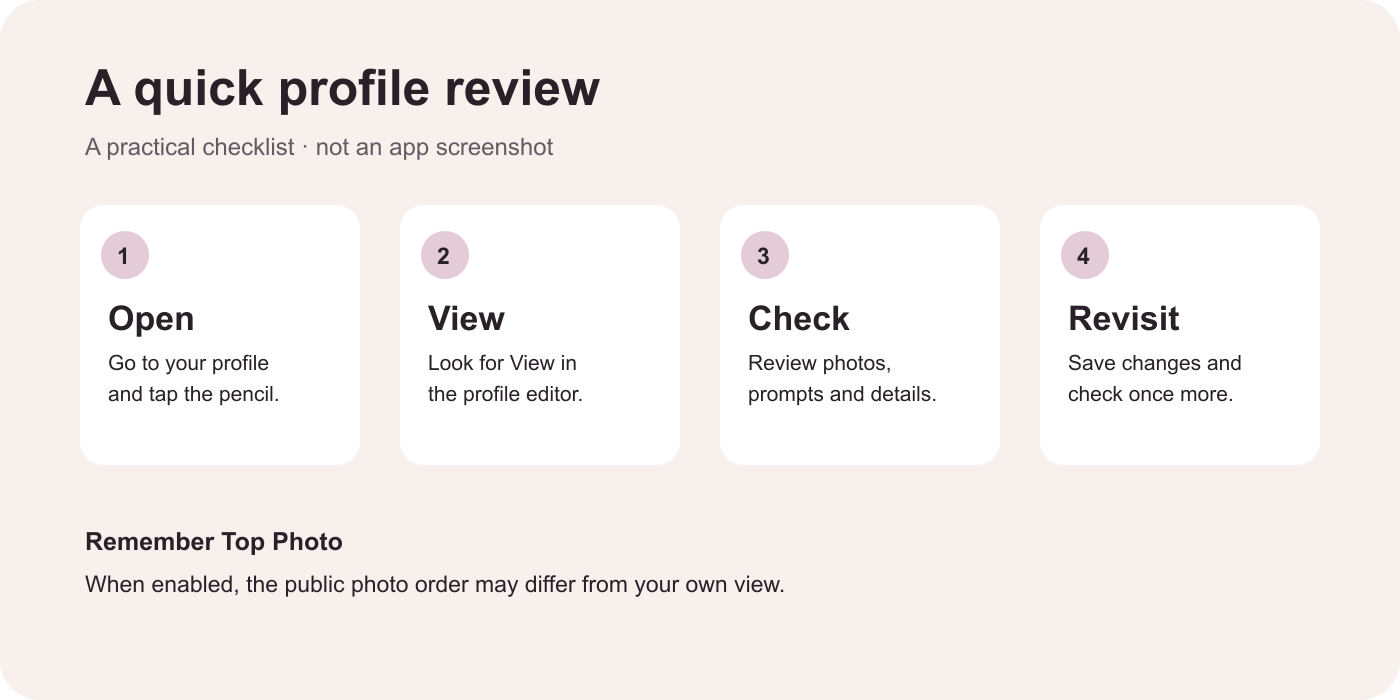
To preview your Hinge profile, open Hinge, tap the photo icon at the far right of the bottom navigation, and tap the pencil by your picture. Look for View at the top of the profile editor, then scroll through your photos, prompts, and visible details. Labels and layouts can change with app updates, so use your version's on-screen controls if they look different.
The preview is useful for checking your content, but it is not a perfect simulation of every other person's screen. If Top Photo is on, Hinge says the order shown publicly or in a match's list may differ from what you see in Edit and View Profile.
How to preview Hinge profile content step by step
- Open your profile area. In Hinge, tap the photo icon on the far right of the navigation bar.
- Open the editor. Tap the pencil icon by your profile photo. Hinge also uses this route in its Top Photo instructions.
- Look for View. If your editor has a View control at the top, tap it to see the profile layout. The View label has also been described in this independent walkthrough; Hinge's help page confirms that a View Profile section exists but does not document every tap to reach it.
- Scroll from start to finish. Check your lead photo, the other photos or videos, prompt answers, and details you intended to show.
- Return to editing and save. Make a change, follow the save or Done control shown in your app, and open the view again. If the layout or View control is missing, update the app and consult Hinge Help for your current version.
You do not need to create a second account or ask a stranger to find you. Our editorial team's preferred first pass is to check the profile yourself, then ask a trusted friend for feedback only if you are comfortable sharing it.
What to check in the preview
A useful review is not a beauty contest. Look for small issues that make your profile harder to understand or less like the person someone will meet.
| Check | What to look for | Practical adjustment |
|---|---|---|
| First photo | Is your face clear? | Choose a recent, well-lit photo. |
| Cropping | Is anything important cut off? | Reposition or replace the image. |
| Variety | Are photos too similar? | Add a different setting or activity. |
| Prompts | Are answers specific? | Add a small, true detail. |
| Visible details | Are shared details accurate? | Review visibility and privacy. |
For example, “I love food and travel” tells a reader very little about what to ask. “I will happily plan a weekend around a great noodle shop” gives them an easy starting point, if it is true for you. You do not need a clever answer for every prompt; clear and personal is enough.
For a deeper breakdown of photo choices and prompt examples, see our Hinge profile review guide. That guide focuses on improving the content; this walkthrough focuses on finding and checking the profile view.
Why your photos may appear in a different order
Top Photo is an optional Hinge feature that tests your uploaded pictures and uses a model to predict which is most likely to get a Like. Hinge says it puts the predicted photo first and can continue testing and reordering while the feature is on. It also says public and Match list order can differ from both Edit Profile and View Profile. See Hinge's Top Photo explanation.
That means your own preview can help you inspect individual pictures and text, but it cannot confirm the exact photo order every person sees when Top Photo is enabled. Nor can this preview tell you whether someone has seen your profile or what they thought of it.
How to check the Top Photo setting
- Tap your photo icon, then the pencil to open the profile editor.
- Find the Top Photo switch. Hinge describes purple as on and gray as off.
- Choose the setting you prefer. If you want to select your own lead image, turn Top Photo off and arrange your photos in the editor.
- Hinge says changes to this switch save automatically on Android; on iPhone, tap Done at the top right of Edit Profile. Reopen the setting to check your choice.
Availability and app layouts may change. The official instructions above apply to the Top Photo toggle specifically; follow the save prompts shown for other edits. Hinge also says Top Photo continues testing while an account is paused, so check the switch before a break if photo order matters to you.
What if you cannot find View or your changes look wrong?
Start with the version you have, rather than assuming a screenshot from an older tutorial matches your app. Update Hinge, reopen your profile editor, and look for a View or similar profile-view control. If the app asks you to save, confirm the save before leaving. Then reopen the editor and check the content again.
If the photo order looks different from what someone else reports, check Top Photo first. If a photo appears cropped, try adjusting the image or replacing it and review the result again. For persistent issues or an interface that does not match these steps, use Hinge's Help Center rather than sharing your login with a third party.
A friend can offer a second opinion on screenshots you choose to share, but their feedback is subjective. Another person's view may also differ, particularly with Top Photo enabled. Never give someone your password or verification code just to review your profile.
Get a second opinion without oversharing
If you want structured feedback after the preview, the Hinge profile analyzer lets you submit profile screenshots for an AI-assisted review. It gives suggestions, not access to Hinge's public display or a guarantee of matches. Check the tool's instructions and privacy information before uploading.
Choose only the screenshots needed for the feedback you want. Crop or cover phone numbers, addresses, workplace details, and other sensitive information first; also avoid sharing another person's private messages or identifiable details without permission. Keep the originals if you want to compare your own changes later.
A practical way to use feedback is to pick one change, make it in Hinge, and reopen your profile view. For example, replace a dark lead photo with a clearer recent one, then check whether the crop still shows your face. A review tool cannot verify who sees your profile or establish that a single edit caused more matches.
FAQ: Hinge profile preview
Can I see my Hinge profile as others see it?
Use the profile editor's View option, when available, to review the layout and content. It is an approximation: Hinge says Top Photo can make the public and Match list photo order differ from Edit and View Profile.
Does Hinge tell me who viewed my profile?
The profile preview shows your own content; it is not a list of people who have viewed it. Do not treat a preview or a change in photo order as evidence that a particular person saw you.
Why is my first Hinge photo different from my preview?
If Top Photo is enabled, Hinge may choose a different leading image. Check the Top Photo switch and Hinge's current help instructions. Other display differences can also occur, so a single report from another user is not enough to identify the cause.
Can I check my profile while it is paused?
Hinge says Top Photo may continue testing and reordering photos while an account is paused. Use your own profile editor to review your content; a paused account should not be treated as a way to verify precisely what another person sees.
Do I need an AI tool to preview my Hinge profile?
No. Hinge's own profile view is the place to inspect your profile. An optional screenshot-based review can suggest ways to improve the content, but it does not replace the app or show a live public preview.
Sources and review notes
The navigation and Top Photo details were checked against Hinge's Top Photo help page, updated June 29, 2026, and the View control was cross-checked against an independent photo-editing walkthrough. This guide was reviewed on October 28, 2026. Interface labels can change; follow the current app and Hinge Help if yours differs.
What To Do Next
If this guide helped you diagnose the problem, the next step is to test the right tool on a real conversation, opener, or profile screenshot.
Related Reading
View all articlesDating
Natural Flirty Replies for Every Stage of a Dating Chat
Find flirty replies for new matches, compliments, playful teasing, and asking for a date. Adapt each example to your chat without adding pressure.
Dating
AI Pickup Lines from Profile Photos: Examples and Tips
Turn a dating profile photo into a natural AI pickup line. Compare example openers, edit out assumptions, and learn when to use photo uploads or write manually.
Dating
Best AI Model for Dating Chat in 2026? DatingHelpAI Tested Six
Six AI models for dating chat compared: 576 text outputs, quality scores, first-attempt reliability, latency, image limits, and published prices.
About this content
Dating Help AI, operated by EasyGlobe, publishes product pages and dating-app workflow content to explain how the public tools work, document the current public product model, and help users apply suggestions with more context and care. For the current product overview and how uploads and comparison pages are handled, review the trust pages below.
The tools provide suggestions, frameworks, and second-pass review. They do not guarantee matches, replies, dates, or relationship outcomes. The content and outputs are educational dating-app guidance, not therapy, legal advice, or professional mental-health support.
Editorial review owner: Luhao Zhao, Founder and Product Lead, Dating Help AI, based in Los Angeles, California, United States. Product and trust-sensitive content is reviewed on a weekly cadence.